TextPulse User Guide
TextPulse rewrites AI-assisted drafts into natural human phrasing while preserving your meaning, citations, numbers, and technical terms. This guide walks through every control on the dashboard and explains what each metric tells you.
The humanizer workspace
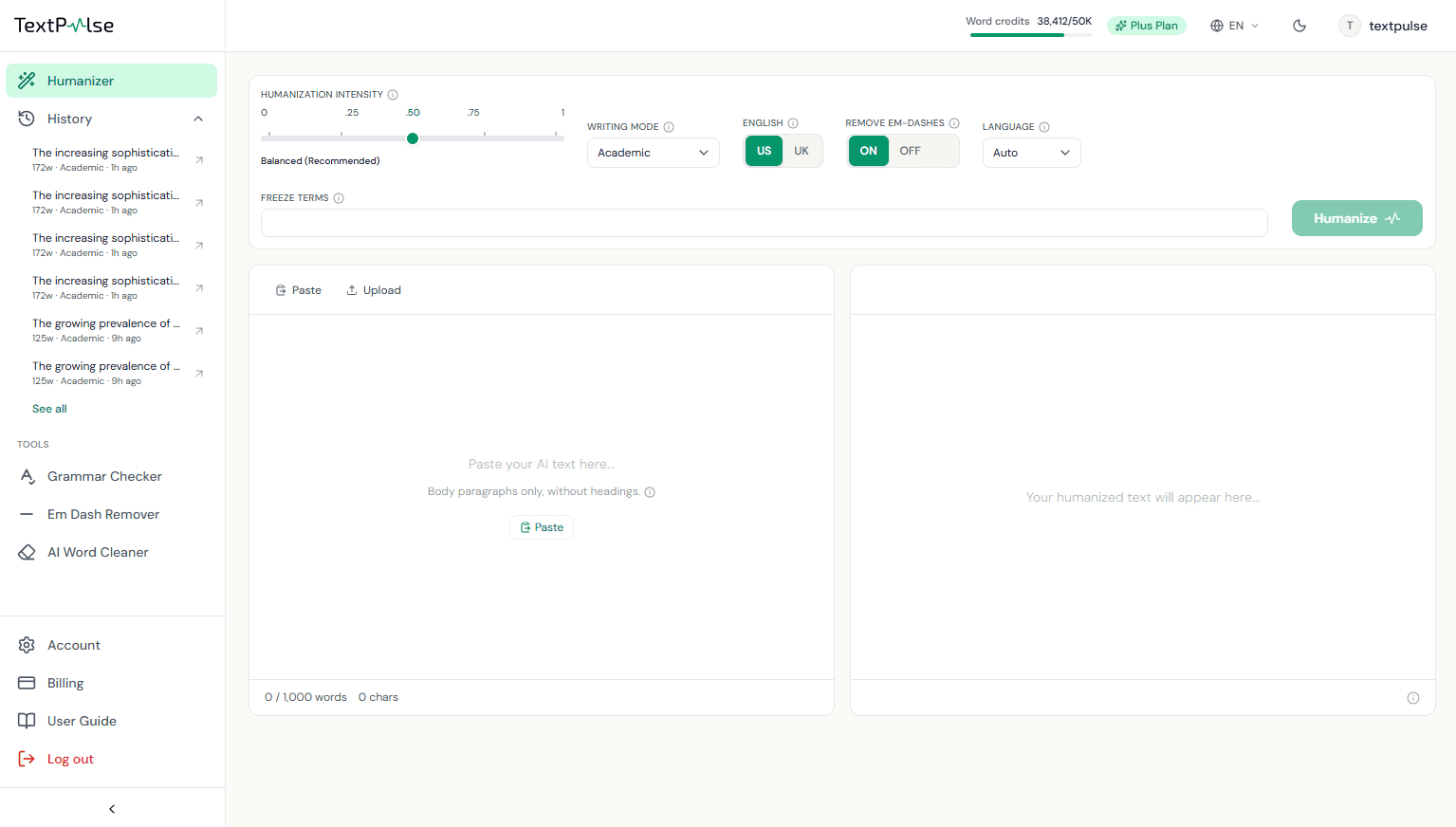
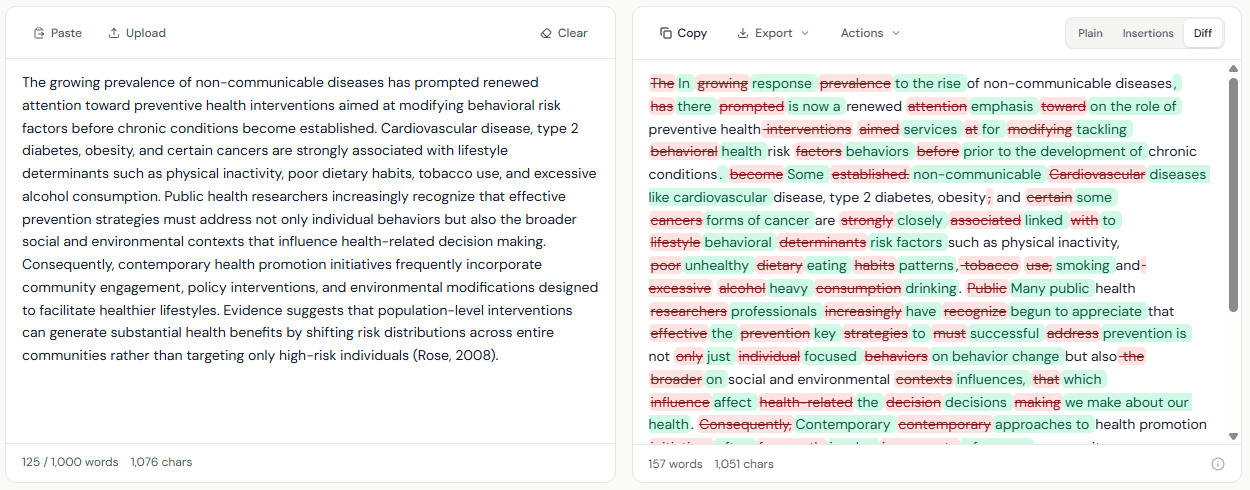
The workspace has three parts: a control rail on top where you set how the rewrite behaves, an input pane on the left for your original text, and an output pane on the right where the humanized version appears. A metrics bar slides in at the bottom after each run.
Adding your text
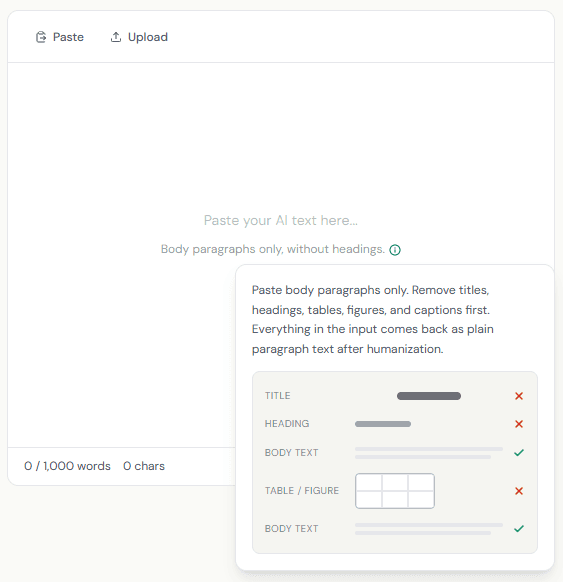
Paste text with the Paste button or Ctrl+V, or upload a .docx or .txt file with the Upload button. Paste body paragraphs only: titles, headings, tables, and figure captions come back as plain paragraph text, so remove them first. The counter under the input shows your words against the per-humanization limit for your plan (500 on Pro, 1,000 on Plus), with a 50-word minimum.
Writing modes
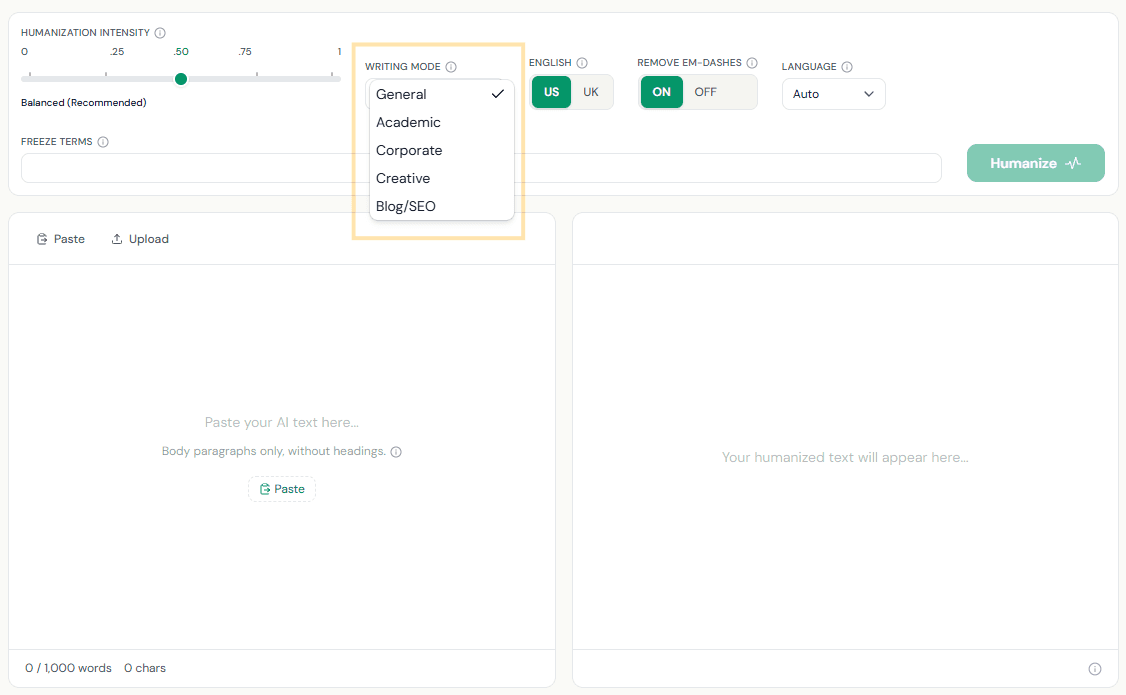
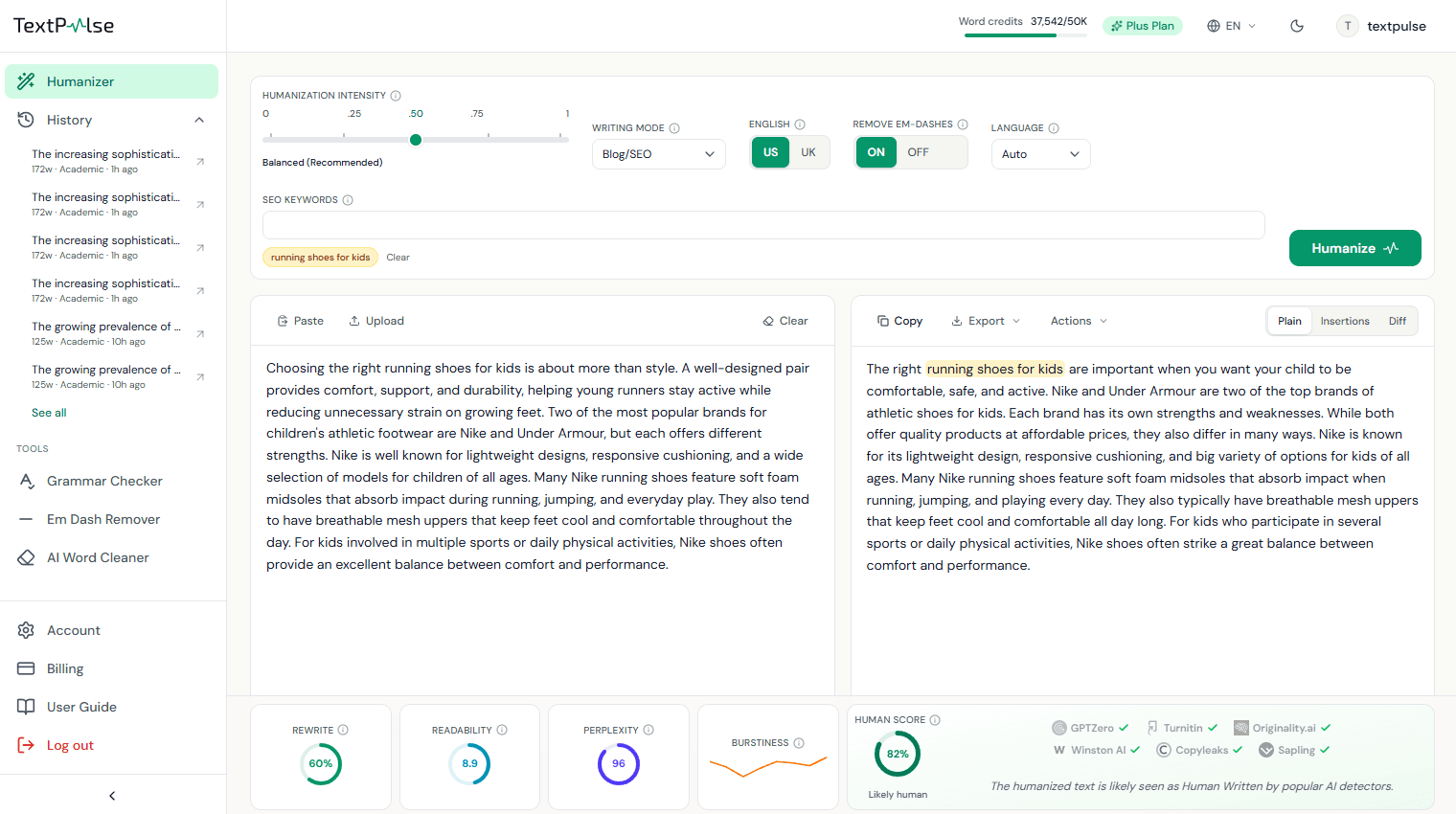
The writing mode sets the tone of the rewrite. General keeps a neutral everyday register with contractions preserved. Academic holds a formal scholarly tone, protects in-text citations, and expands contractions. Corporate uses a polished business voice. Creative keeps livelier, narrative prose. Blog/SEO writes conversationally and treats your keyword list as untouchable. Academic is available on every paid plan; the other modes are Plus features.
Voice filter
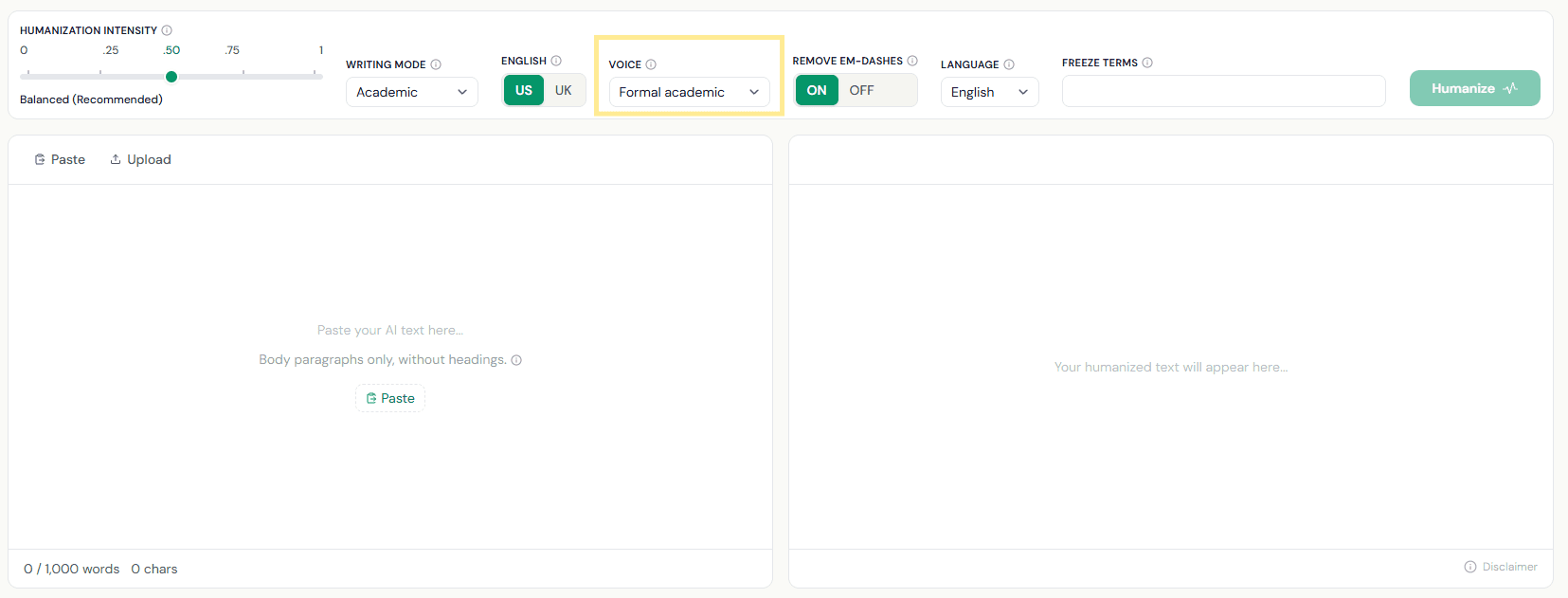
The Voice control is on the rail next to the writing mode and sets which grammatical person the output may use. It filters the voice your draft already has, so write the draft in the voice you want and pick the option that names it.
Match my draft preserves the voice as written. Formal academic keeps a neutral register and allows no first or second person. First person only preserves I and we and blocks second person. Second person only preserves you and blocks first person. The setting applies to the whole humanization. Voice is a Plus feature.
Humanization intensity
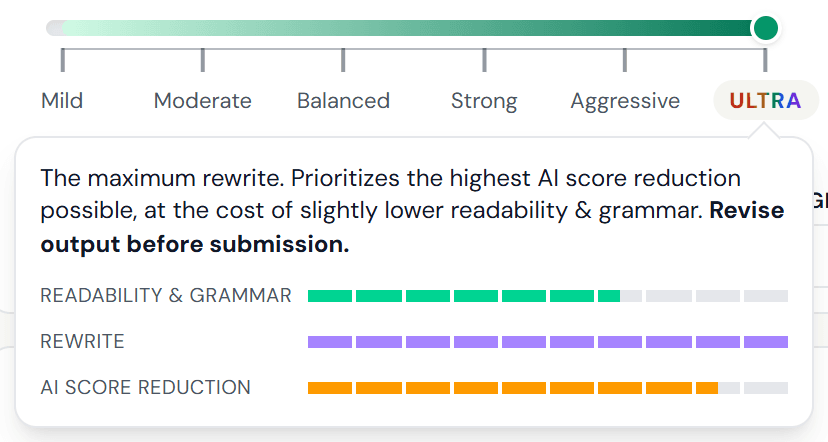
The slider has six settings from Mild to ULTRA. Mild stays closest to your original phrasing and reads most smoothly. Balanced, the recommended default, trades a little more rewriting for a result that reads more consistently human. Aggressive rewrites deeply, and ULTRA is the maximum rewrite. The Pro plan only uses the Balanced intensity. The full humanization intensity spectrum is a Plus plan feature.
Hover over a setting to see what it does. A short description and three bars for readability & grammar, rewrite, and AI score reduction. ULTRA prioritizes the highest AI score reduction possible, at the cost of slightly lower readability & grammar, so revise the output before submission. ULTRA works on English text. On other languages the multilingual humanizer's highest setting is Aggressive. The Doc Humanizer popup also uses the same humanization intensity spectrum.
Freeze terms and SEO keywords
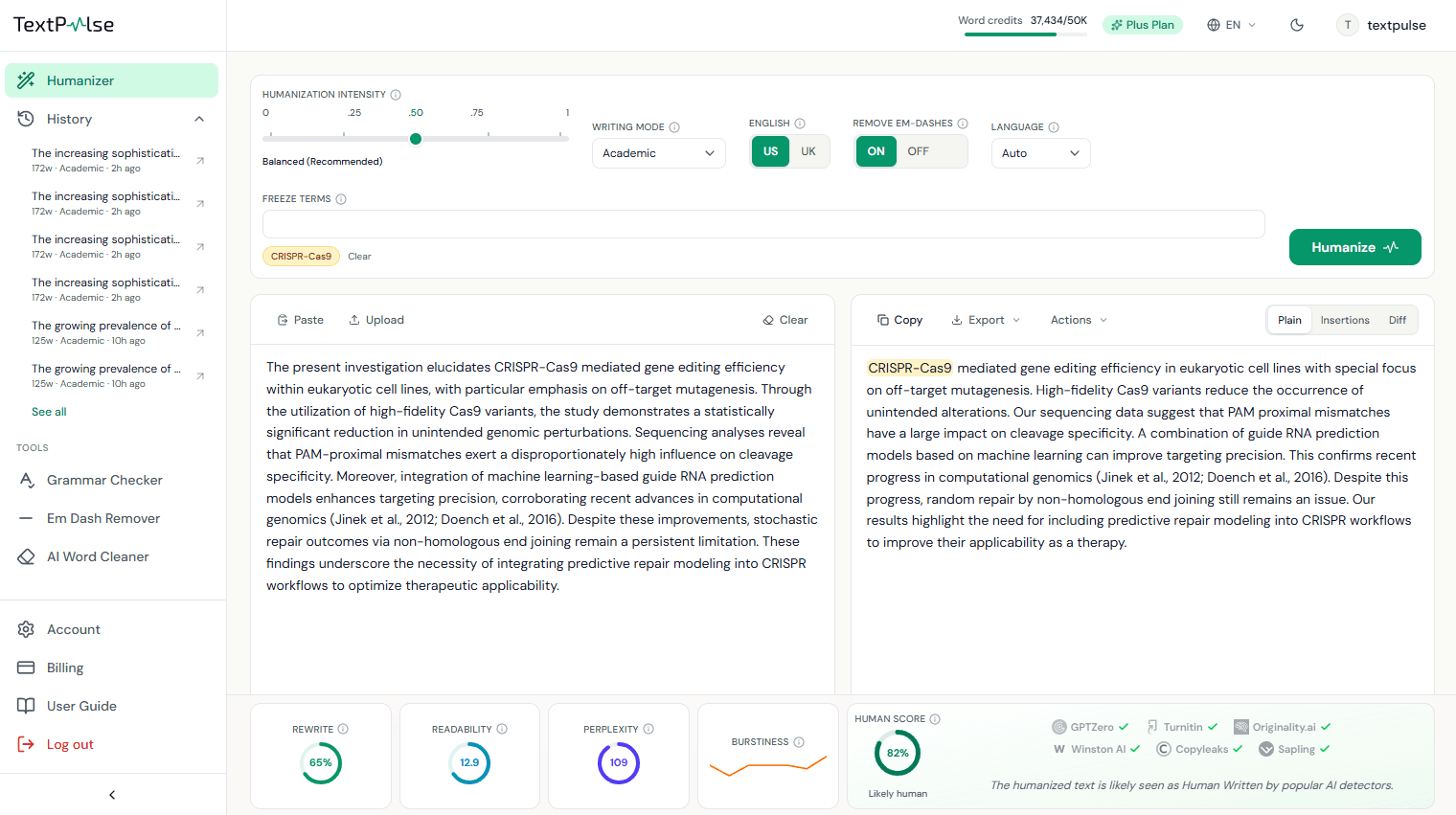
Freeze terms are words or phrases the rewrite must keep exactly as written: author names, statistics, chemical formulas, technical vocabulary. Add up to 10, separated by commas or Enter. Terms you have used recently reappear as one-click chips. In Blog/SEO mode the same control is labeled SEO keywords, for the phrases your page needs to keep word for word.
Language and US/UK English
Auto detects the language of your text. English runs on the TextPulse engine; other languages (60+) run on a large-model rewrite and are a Plus feature. For English text, the US/UK toggle picks the spelling family, for example color against colour.
Remove em-dashes
AI drafts lean heavily on em-dashes, and readers notice. With the toggle ON, the rewrite replaces them with commas or restructured sentences. Leave it ON unless your style guide calls for em-dashes.
Running a humanization
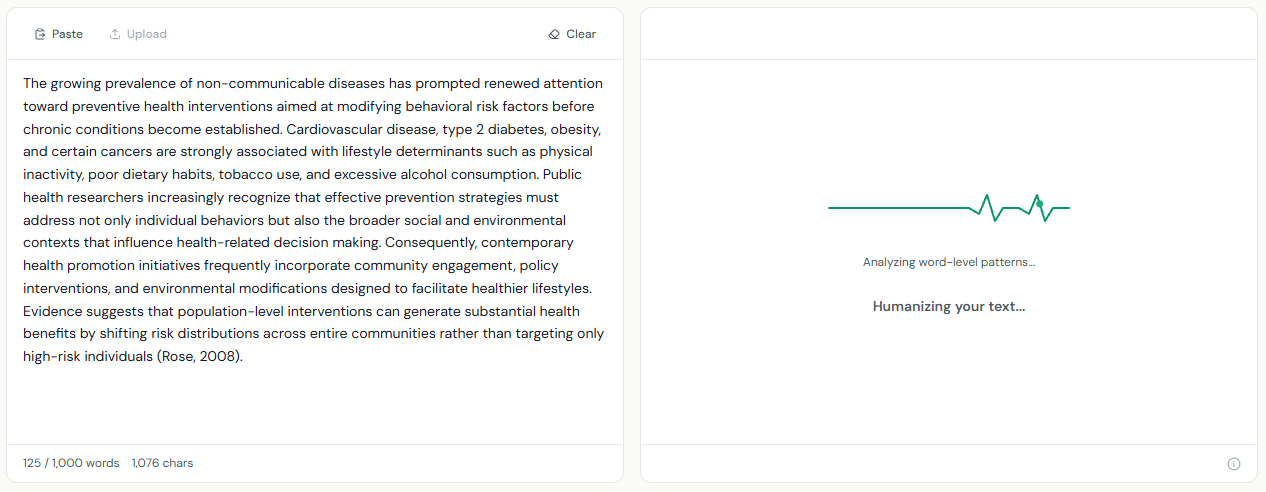
Press Humanize (or Ctrl+Enter). A typical pass takes 15 to 45 seconds; long humanizations can take a few minutes, so keep the tab open. Words are charged from your allowance based on the input length. If a humanization fails or times out, the words are refunded automatically and a Retry button appears. One pass runs at a time per account.
Reading the results
Three views of the output: Plain shows the humanized text alone. Insertions highlights the words the humanizer added in green. Diff shows the full edit, with deletions struck through in red and insertions in green, so you can review every change before using the text.
The metrics bar
After each run, four tiles and the Human Score card summarize the rewrite:
- Rewrite is the share of the output that differs from your original text.
- Readability is the Flesch-Kincaid grade level. Human academic prose usually falls around grades 10 to 16.
- Perplexity estimates how predictable the wording is, on the familiar GPT-2-style scale. Human academic writing usually scores above 40.
- Burstiness charts your sentence lengths. A jagged line that reads green means a healthy mix of short and long sentences; the line shifts to amber and orange as the rhythm flattens.
- Human Score estimates how likely detectors are to read the text as human-written, from rewrite depth, vocabulary diversity, token distribution, and sentence variation. It is a per-document estimate computed locally, never an actual detector result.

Choosing which metrics show
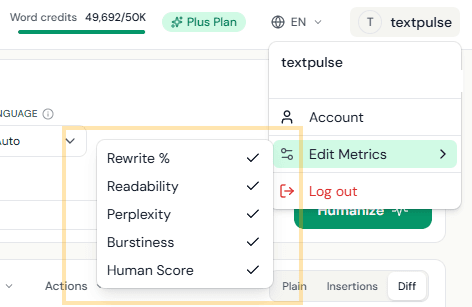
Open the user menu in the top-right corner and use Edit Metrics to toggle individual tiles on or off. Your choice is remembered on this device.
Exports
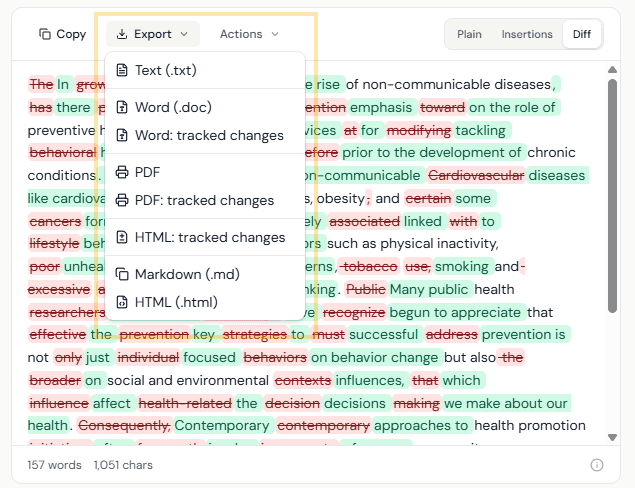
The Export menu on the output pane offers: plain text (.txt), Word (.doc), Word with tracked changes (opens in Word as real revisions you can accept or reject), PDF, PDF with tracked changes, standalone HTML with tracked changes, Markdown (.md), and clean HTML for CMS editors. Tracked-changes and PDF exports are Plus features; the diff views on screen are open to every plan.
Re-humanize
Re-humanize, under the Actions menu, feeds the current output back in for another humanization, keeping the same freeze terms. Use it when you want a deeper rewrite than a single humanization gives. Each humanization spends words from your allowance. Plus feature.
Declare AI Use
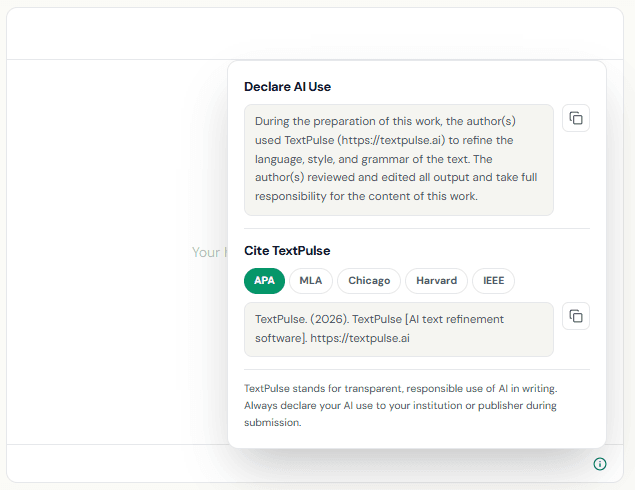
The small circle at the bottom-right of the output pane opens the Declare AI Use card: a ready-to-paste declaration of AI assistance for your manuscript, and a Cite TextPulse block with APA, MLA, Chicago, Harvard, and IEEE formats. TextPulse stands for transparent, responsible AI use; if your institution or publisher asks for disclosure, this card gives you the exact wording.
Grammar Checker
Plus includes three companion tools for polishing humanized text, listed under Tools in the left sidebar: the Grammar Checker, the Em Dash Remover, and the AI Word Cleaner. Each handles up to 1,000 words per run.
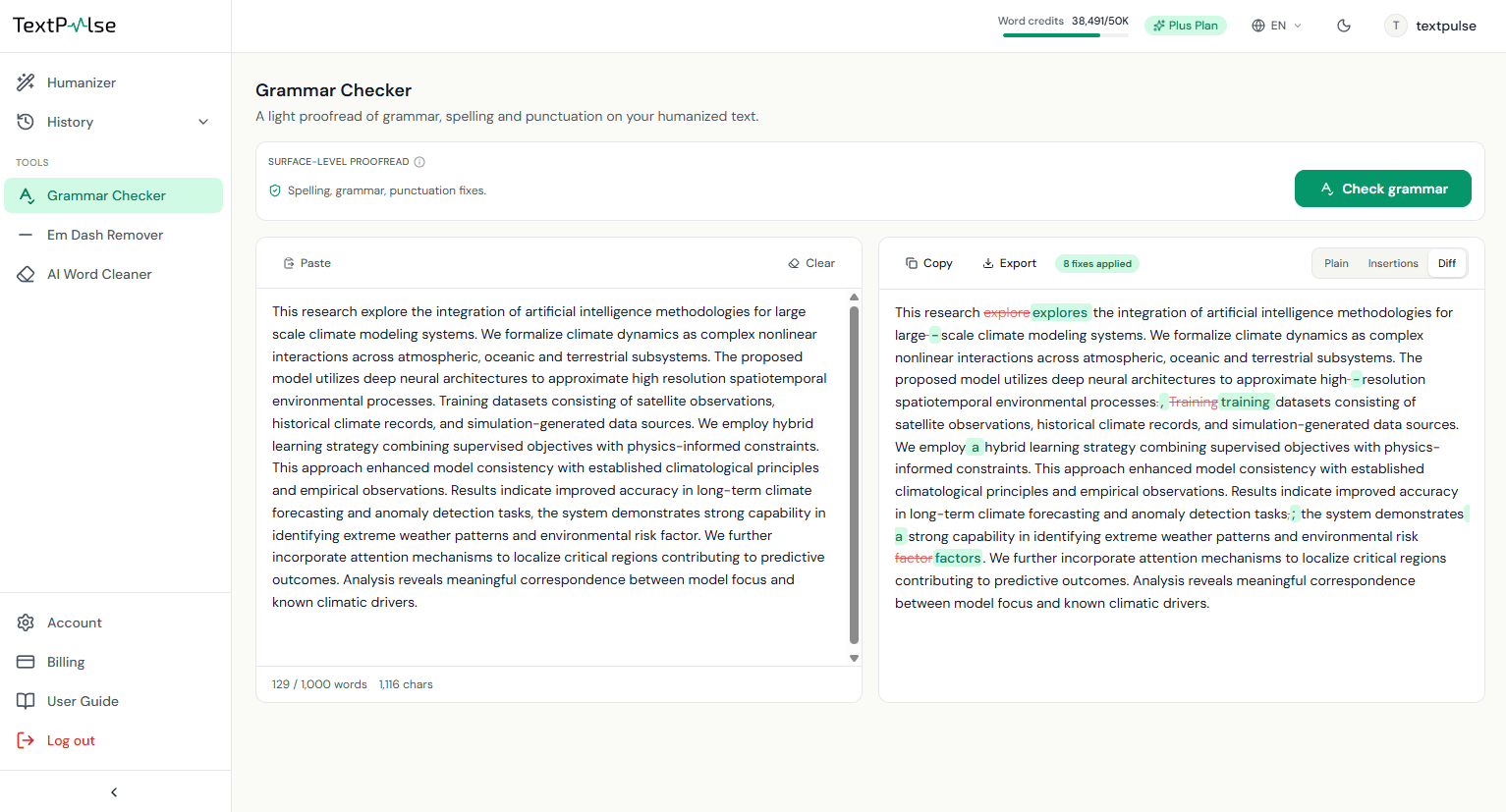
The Grammar Checker is a light, detector-safe proofread for your humanized text. It fixes only clear, unambiguous errors: missing commas, subject-verb agreement, articles, possessives, run-on sentences, sentence fragments, doubled words, misspellings, and broken punctuation. It never rephrases or smooths sentences, because heavy rewriting is exactly what pushes detector scores back up. Deterministic safeguards mean it cannot introduce em dashes or touch citations, numbers, or quoted text; the worst a bad suggestion can do is get skipped. Review the result as plain text or a word-level diff, then copy it or export it as text, Word, or Word with tracked changes. Passes use your word credits on the input count, the same as the humanizer.
Em Dash Remover
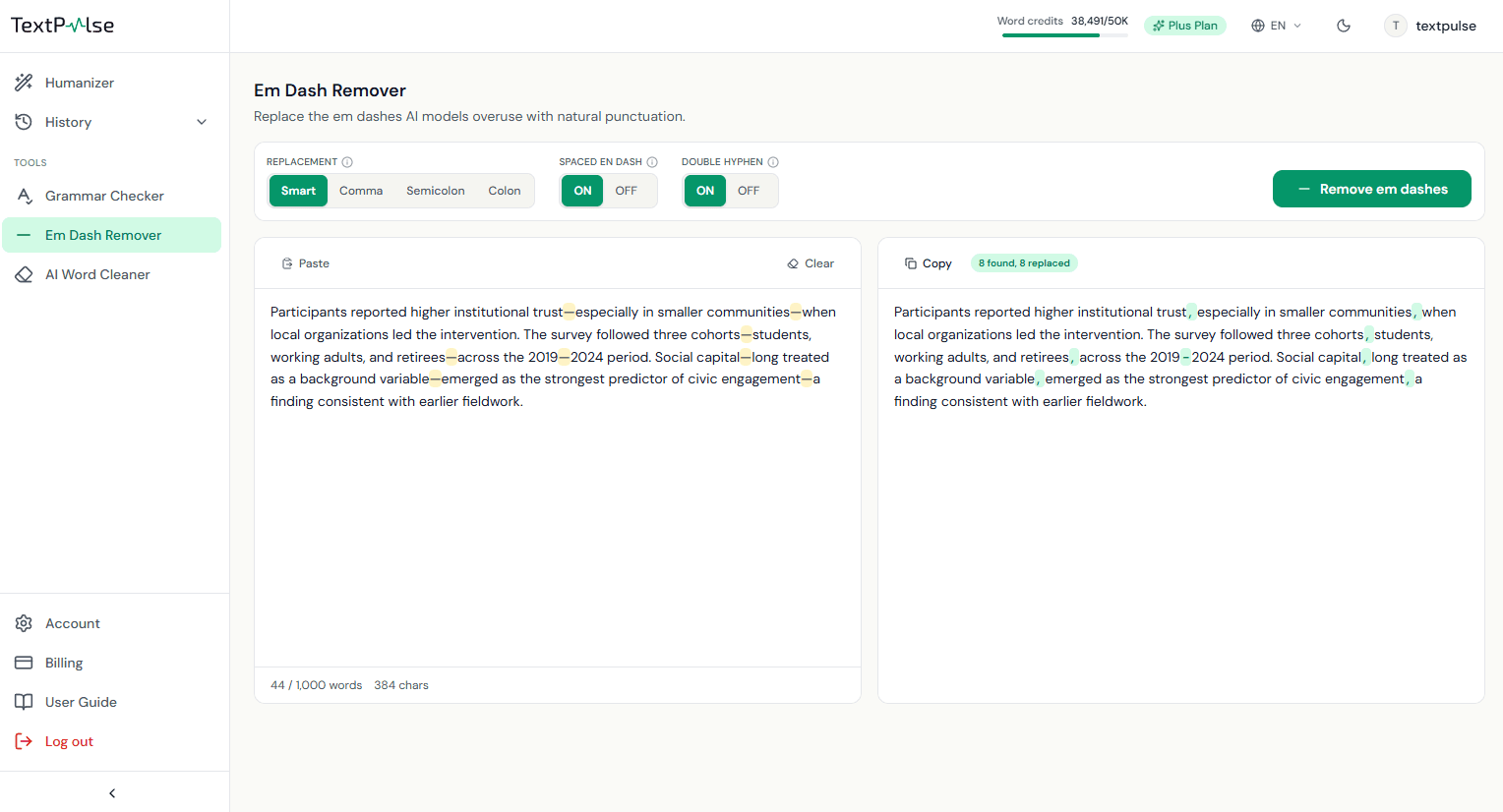
A standalone version of the humanizer's remove em-dashes option, for any text you paste in. Every em dash is highlighted in amber as you type, with a live count under the input. The Replacement pills set what each one becomes: Smart picks a comma, colon, period, or clean removal from the sentence context (recommended), or force commas, semicolons, or colons everywhere. Two toggles extend the sweep to spaced en dashes and typed double hyphens; number ranges like 2019–2024 are never touched. The output highlights every replacement so you can scan what changed. It runs instantly in your browser and never uses your word credits.
AI Word Cleaner
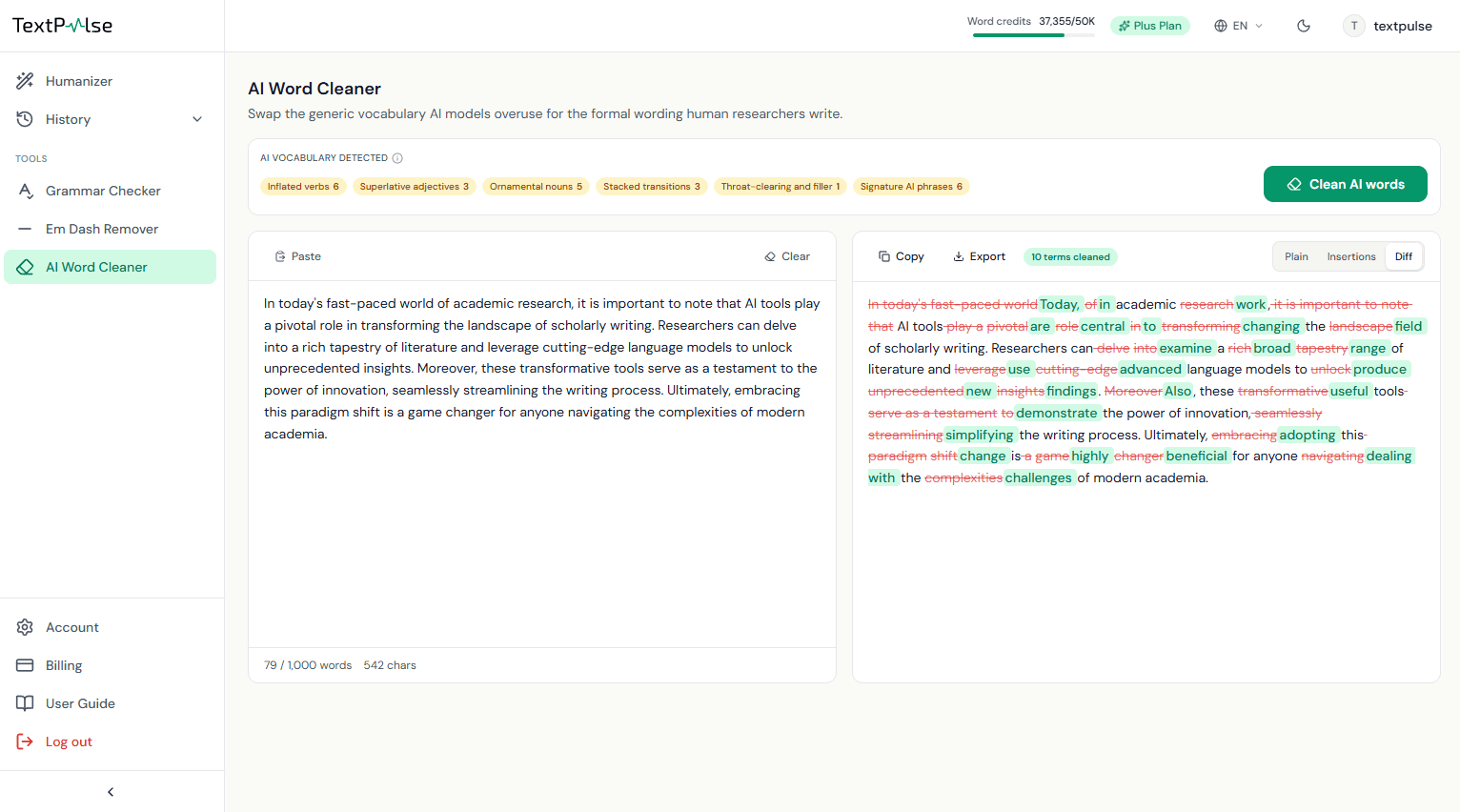
Swaps the vocabulary AI models statistically overuse (delve, pivotal, landscape, tapestry, underscores) for the plain formal wording human researchers actually write. As you paste, a research-sourced lexicon of 900+ terms flags candidates live as amber category chips. When you run the tool, a context-aware model pass checks each flagged term in its sentence and swaps only the real offenders, bridging with minimal wording so the sentence stays grammatically sound. Words used in a legitimate domain sense stay, so a finance paper's leverage is never touched, and citations, numbers, and technical terms come through untouched. Review the swaps in the diff view, then export as text, Word, or Word with tracked changes. Passes use your word credits on the input count.
Document Humanizer
The Document Humanizer takes a complete Word document in one upload. It is for theses, dissertations, journal manuscripts, reports and any other long document where pasting 1,000 words at a time and rebuilding the formatting afterwards is the slow part. The body paragraphs are humanized with your Humanizer settings; headings, lists, tables, figures, captions, equations, footnotes and the reference list are preserved verbatim. The Document Humanizer comes with the Plus plan.
Quick start:
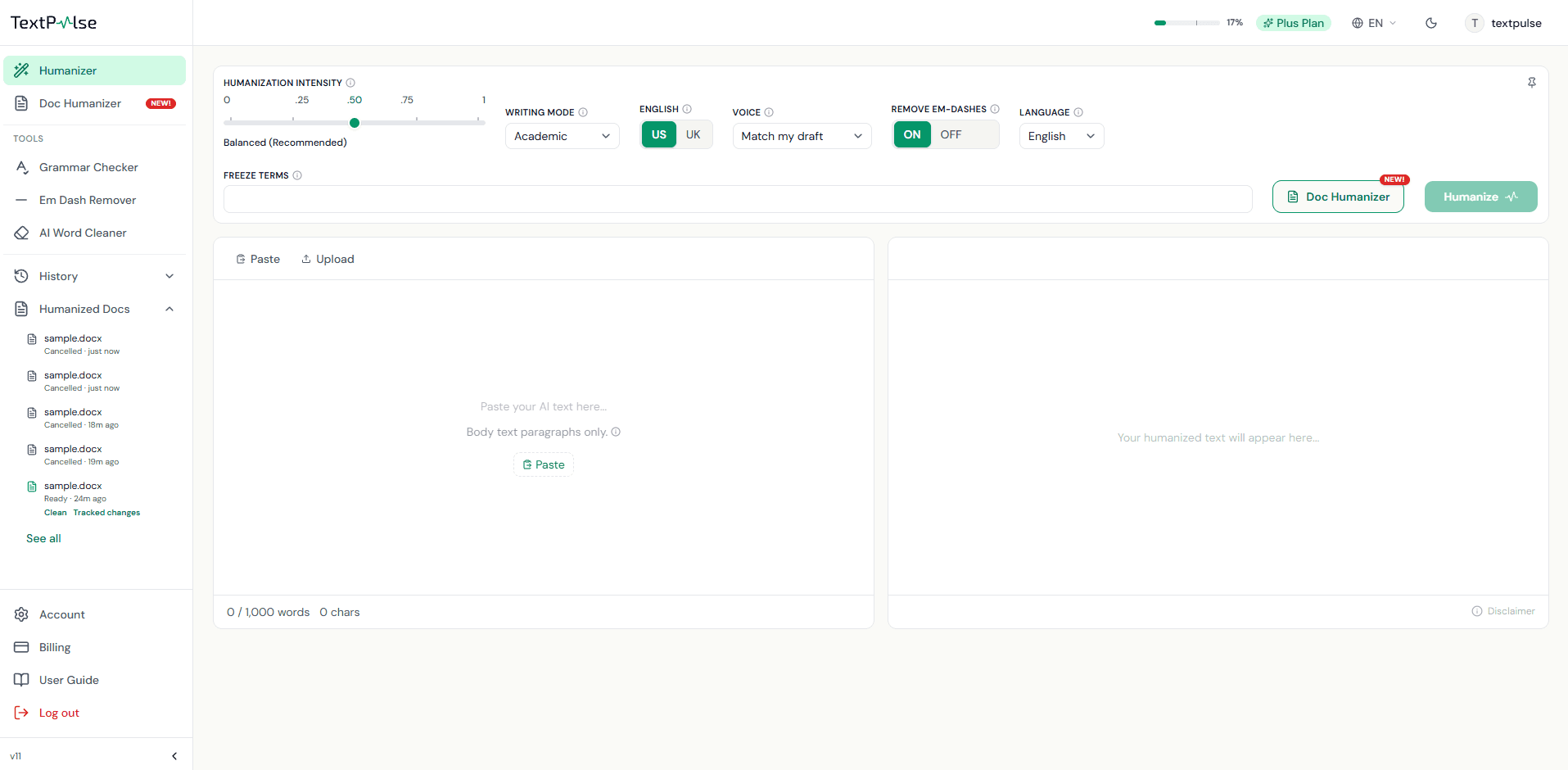
- Step 1 Open Doc Humanizer from Tools in the left sidebar, or click the Doc Humanizer button beside the Humanize button on the Humanizer tab.
- Step 2 Check the humanization options at the top of the popup. Intensity, writing mode, US or UK English, Voice, Remove em-dashes and Freeze terms are pre-filled from the Humanizer tab and apply to the whole document.
- Step 3 Drop your .docx on the upload area, or click it to choose the file.
- Step 4 Click Check document. The checklist confirms the file and the popup shows the word credit cost. Nothing is charged at this step.
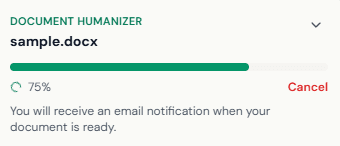
- Step 5 Click Humanize document. The popup closes and a floating window shows the progress section by section, with a progress bar.
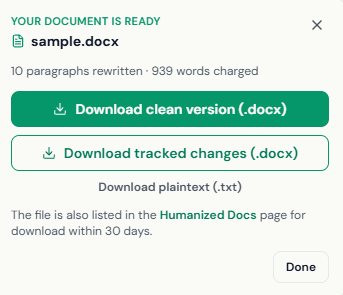
- Step 6 When the document is ready, download it from the window, from the email you receive, or from Humanized Docs in the left sidebar.
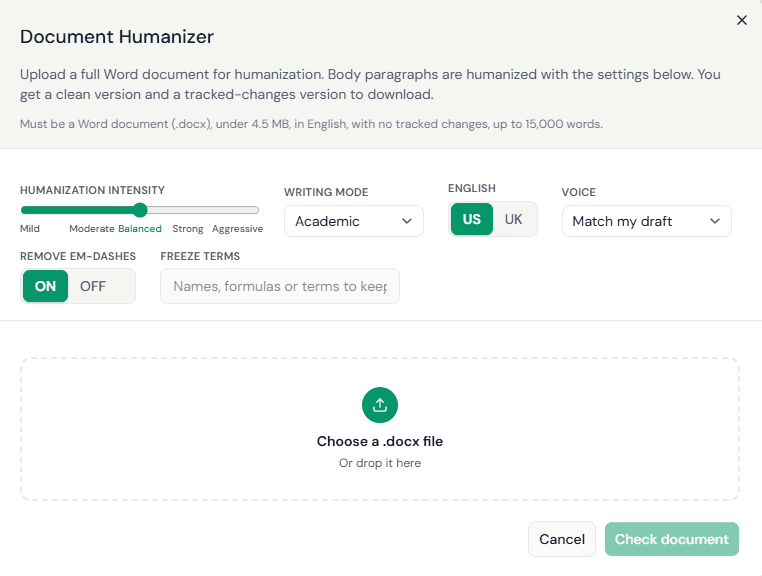
Document requirements and settings
Check document tests six things before anything is charged. A document that fails a test is refused with the reason, and no words are deducted.
- Format A Word document (.docx). Save .doc, .odt and PDF files as .docx in Word first.
- Size Under 4.5 MB. Large pictures are the usual reason a file is over the limit; use Compress Pictures in Word and save again.
- Language English text. For other languages, use the Humanizer tab, which humanizes 60+ languages 1,000 words at a time.
- Tracked changes None. Accept or reject all changes in Word first, save, then upload again.
- Length Under 15,000 words. Split a longer document by chapter and upload each part separately.
- Words Enough words in your plan. The cost is stated before you start; a credit pack covers a shortfall.
The settings apply to every section of the document. They are copied from the Humanizer tab when the popup opens, so set the intensity, writing mode or voice you want for this document on the tab first. Freeze terms are kept exactly as written in every section where they appear.
Progress, downloads and Humanized Docs
The floating window shows the current section ("Humanizing section 3 of 12") and a progress bar. You can minimize it and keep working in the dashboard, or leave the page; the document continues on our servers, and you get an email when it is ready.
Cancel stops the document after the current section. The sections already delivered are charged and the remaining sections are refunded.
Downloads:
- Clean Word file (.docx) The humanized document with its formatting, ready to submit or to keep editing.
- Tracked changes (.docx) The same document with every deletion and insertion marked as a Word revision. Open it in Word, go to Review, and accept or reject the changes one by one or all at once.
- Plain text (.txt) The humanized body text without formatting.
All three downloads stay available on the Humanized Docs page for 30 days. The Humanized Docs section of the left sidebar lists your latest documents with their status and download links, and See all opens the full page. Each document stays available for 30 days, and the latest 20 documents are always listed.
Limits and charging:
- Length Up to 15,000 words per document. Split longer documents by chapter.
- One at a time One document per account at a time. The next upload starts after the current document finishes or is cancelled.
- Charging Words are charged from your monthly allowance at the same rate as the AI Humanizer, section by section as each one is delivered.
Humanization History and rewind
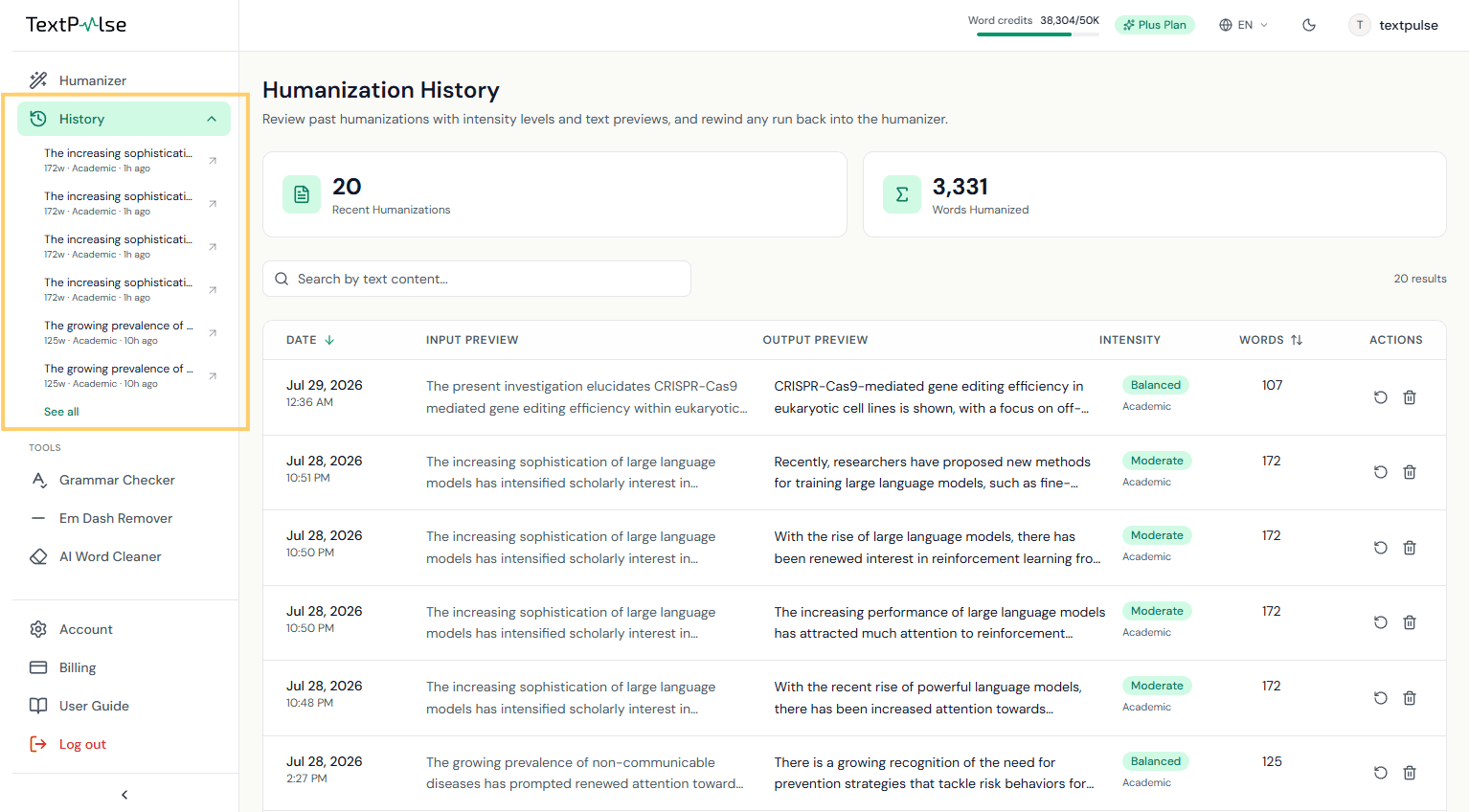
Every successful run is saved to Humanization History: the last 3 on Pro, the last 20 on Plus. The Humanization History page supports search and sorting, and Rewind loads any past run back into the humanizer. The Humanization History item in the left sidebar expands in place to show your most recent runs for one-click rewinding.
Account, credits, and billing
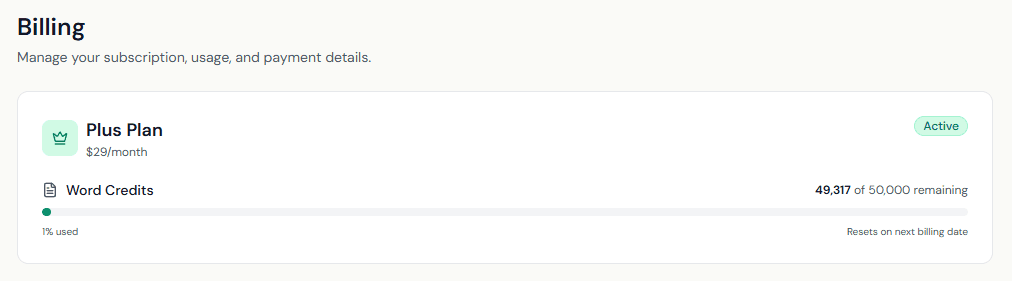
Word credits come in two buckets: your monthly plan allowance, which refills each cycle, and purchased credit packs, which never expire and are spent after the allowance. The Billing page handles plan changes, packs, and cancellation through the Stripe customer portal. Deleting your account requires cancelling any active subscription first; deletion closes the account permanently.
Questions this guide does not answer? Read the FAQs or contact us.