How to Humanize a Word Document (.docx) in One Upload with TextPulse
The Document Humanizer in TextPulse rewrites a whole Word document in one upload. Up to 15,000 words, with headings, tables, figures and references preserved verbatim, and a clean or tracked-changes file to download.
Humanize a Word document in one upload with the Document Humanizer in TextPulse. Upload the .docx and have your body paragraphs humanized using your AI Humanizer settings. Download the completed document as a clean Word document or as a Word document with tracked changes. The headings, lists, tables, figures, captions, equations and the reference list are preserved verbatim. It takes documents of up to 15,000 words and comes with the Plus plan.
| Document Humanizer | At a glance |
|---|---|
| Input | A Word document (.docx) under 4.5 MB, in English, with no tracked changes |
| Length | Up to 15,000 words per document |
| Settings | Copied from your AI Humanizer tab and applied to the whole document |
| Downloads | Clean .docx, tracked-changes .docx, plain text (.txt) |
| Kept for | 30 days; the latest 20 documents are listed under Humanized Docs |
| Charged | Per delivered section, from the same word allowance as the AI Humanizer |
| Plan | Plus |
Why a whole-document humanizer
The AI Humanizer takes up to 1,000 words at a time. A 12,000-word thesis chapter means a dozen copy-pastes and a dozen copies back into the formatted file. The headings, tables and captions have to be cut out first, because the humanizer treats everything it receives as body text. The same applies when you humanize a thesis or dissertation chapter by chapter.
The Document Humanizer removes that work. It classifies every paragraph of the Word file, sends only the body paragraphs for humanization, and writes the humanized text back into the same file with the original formatting. One file goes in and one file comes out.
What you need before you upload
The popup checks six things before anything is charged. A document that fails a check is refused with the reason, and no words are deducted.
- A Word document in .docx format. Save .doc, .odt and PDF files as .docx in Word first.
- A file under 4.5 MB. Large pictures are the usual reason a file is over the limit; Compress Pictures in Word brings most files under it.
- English text. Documents in other languages go through the AI Humanizer tab, which handles 60+ languages 1,000 words at a time.
- No tracked changes. Accept or reject all changes in Word and save before you upload.
- Under 15,000 words. Split a longer document by chapter and upload each part separately.
- Enough words in your plan. The popup states the exact cost, for example "Humanizing this document will cost 4,822 words", before you confirm.
How to humanize a Word document step by step
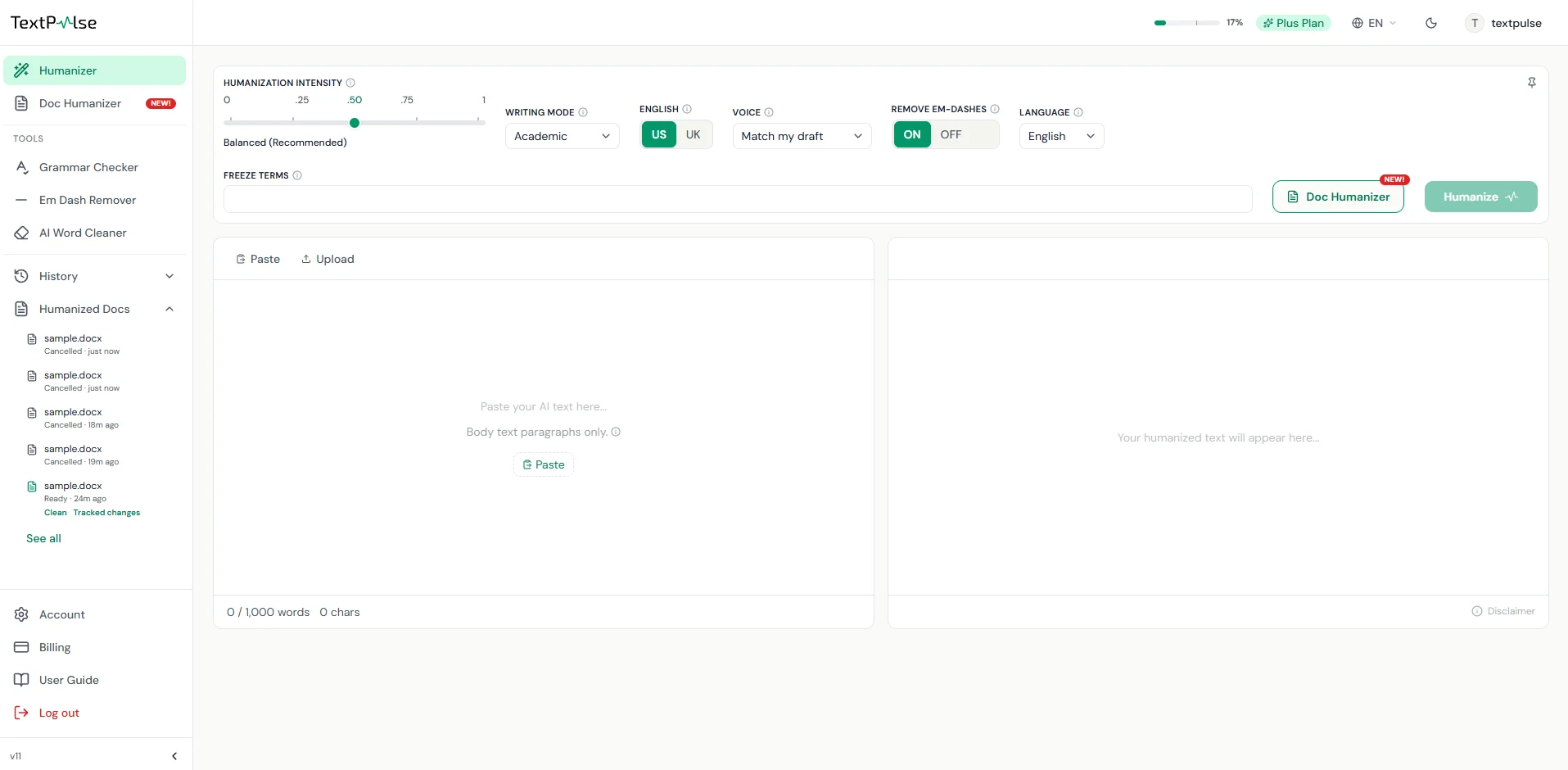
- Open Doc Humanizer from Tools in the left sidebar of the dashboard, or click the Doc Humanizer button beside the Humanize button on the AI Humanizer tab. The feature comes with the Plus plan.
- Set the humanization options at the top of the popup. Intensity, writing mode, US or UK English, Voice, Remove em-dashes and Freeze terms are pre-filled from your AI Humanizer tab and apply to the whole document.
- Drop the .docx on the upload area or choose it from your computer.
- Click Check document. The checklist confirms the file and the popup states the cost in words. Nothing is charged yet.
- Click Humanize document. A floating window shows the progress section by section, such as "Humanizing section 3 of 12". You can keep working in the dashboard or leave the page, and you get an email notification when the document is ready.
- Download the clean Word file, the tracked-changes Word file or the plain text. The document is also listed under Humanized Docs for 30 days.
Humanize your own paper
Transform your AI-assisted text and make it sound human, without touching important words or citations.
What is preserved and what is rewritten
Only body paragraphs are rewritten. Every paragraph in the file is classified before anything is sent. The headings, titles, lists, table cells, figure and table captions and display equations will be kept unchanged. Reference entries, footnotes, headers and footers, the table of contents and short lines such as labels will also be kept unchanged.
Inside a body paragraph, inline equations, footnote marks, hyperlinks, images and field codes are preserved in place. The bold, italic and highlighted format of the surrounding text also remains the same. Citations, numbers, names and your frozen terms are preserved verbatim, as in the AI Humanizer. Your chosen writing mode and voice also apply to all sections.
The file is rebuilt from the original, so styles, numbering, pictures and page layout are unchanged. Word may reflow a page break where a paragraph became longer or shorter.
Clean copy or tracked changes
The clean file is the humanized document, ready to submit or to keep editing. The tracked changes file shows each word that has been deleted or inserted as a Word revision from the author TextPulse. Open it in Word, go to Review, and accept or reject each change one by one, or accept all at once. Choosing Reject All restores your original text.
Supervisors and co-authors who review in Word can see what changed without a separate comparison view, the same way they review a proofread .docx with tracked changes. A plain-text file (.txt) holds the humanized body text without formatting.
How words are charged
The Document Humanizer uses the same word allowance as the AI Humanizer. Before you start, the popup shows the total word count of the document that needs to be humanized. The document is humanized in sections, and your account is charged per section as each one is delivered. When the document is running, if you decide to cancel it, only the sections that have been delivered will be charged.
Where your documents are kept
Finished documents are listed under Humanized Docs in the left sidebar and on the Humanized Docs page. The documents stay available for download for 30 days. The latest 20 humanized documents are always listed. Each account has only one humanized document running at a time. You can start the next one after it finishes or is cancelled.
Frequently Asked Questions
No. Save the file as .docx in Word first (File, Save As, Word Document). A PDF converted to Word often has broken paragraphs and hard line breaks, so check the converted file before you upload it, and accept any tracked changes the conversion left behind. The Document Humanizer then reads the .docx and preserves its structure.
PhD in natural language processing, with years spent building NLP applications end to end. Moe works on text analysis: lexical and syntactic structure, and what separates machine-generated prose from human prose statistically. He has been experimenting with computational linguistics since the early days of NLTK, spaCy and WordNet, and still writes most of his tooling in Python.