AI Humanizer Intensity Levels: What Each Setting Does, From Mild to ULTRA
TextPulse has six humanization intensity levels, from Mild to ULTRA. What each setting changes in your text, its AI score reduction on GPTZero, and which one to use.

AI humanizer intensity levels set how far a rewrite changes from your original draft. TextPulse has six of them on one slider, namely, Mild, Moderate, Balanced, Strong, Aggressive and ULTRA. Each step up rewrites more deeply and raises the AI score reduction, from 50% at Mild to 89% at ULTRA on GPTZero.
ULTRA is the new sixth setting, and it comes with the Plus plan. This post covers what each setting does to your text, what ULTRA costs in readability and grammar, and which setting to choose for a given document.
| Intensity level | What it does | AI score reduction (GPTZero) |
|---|---|---|
| Mild | The lightest rewrite, closest to your wording | 50% |
| Moderate | A moderate rewrite, readability & grammar first | 59% |
| Balanced | The recommended default, the best balance | 68% |
| Strong | A stronger rewrite, AI score reduction first | 76% |
| Aggressive | A higher AI score reduction, acceptable readability & grammar | 78% |
| ULTRA | The maximum rewrite, the highest AI score reduction, slightly lower readability & grammar | 89% |
What humanization intensity changes in your text
Intensity controls how much of each sentence the humanizer rewrites. At the low end it changes word choice and small phrases, so your sentence order and most of your vocabulary survive. At the high end it splits and merges sentences and changes the rhythm of whole paragraphs.
AI detectors read statistical patterns such as word predictability (perplexity) and sentence-length variation (burstiness). A deeper rewrite changes more of those patterns, which is why the AI score reduction climbs with the slider. It also takes the text further from your draft, so semantic faithfulness falls a little at each setting.
Some things are preserved at every setting. In-text citations and reference entries are preserved verbatim, and so are numbers and the terms you freeze. The post on an AI humanizer that preserves citations covers how that works in each referencing style.
The six intensity settings, from Mild to ULTRA
The dashboard slider shows a short description for each setting when you hover over it, with three bars for readability and grammar, rewrite and AI score reduction. Here is what each one does.
- Mild is the lightest rewrite. It prioritizes the highest readability and grammar, with the lowest AI score reduction. Use it on text you have already edited closely.
- Moderate is a step up. It still puts readability and grammar ahead of the AI score reduction.
- Balanced is the recommended default, and the setting on the Pro plan. It gives the best balance between good readability and grammar and an acceptable AI score reduction.
- Strong is a stronger rewrite. The AI score reduction comes first, with good readability and grammar.
- Aggressive rewrites at passage level. It targets a higher AI score reduction, with acceptable readability and grammar.
- ULTRA is the maximum rewrite. It prioritizes the highest AI score reduction possible, at the cost of slightly lower readability and grammar.
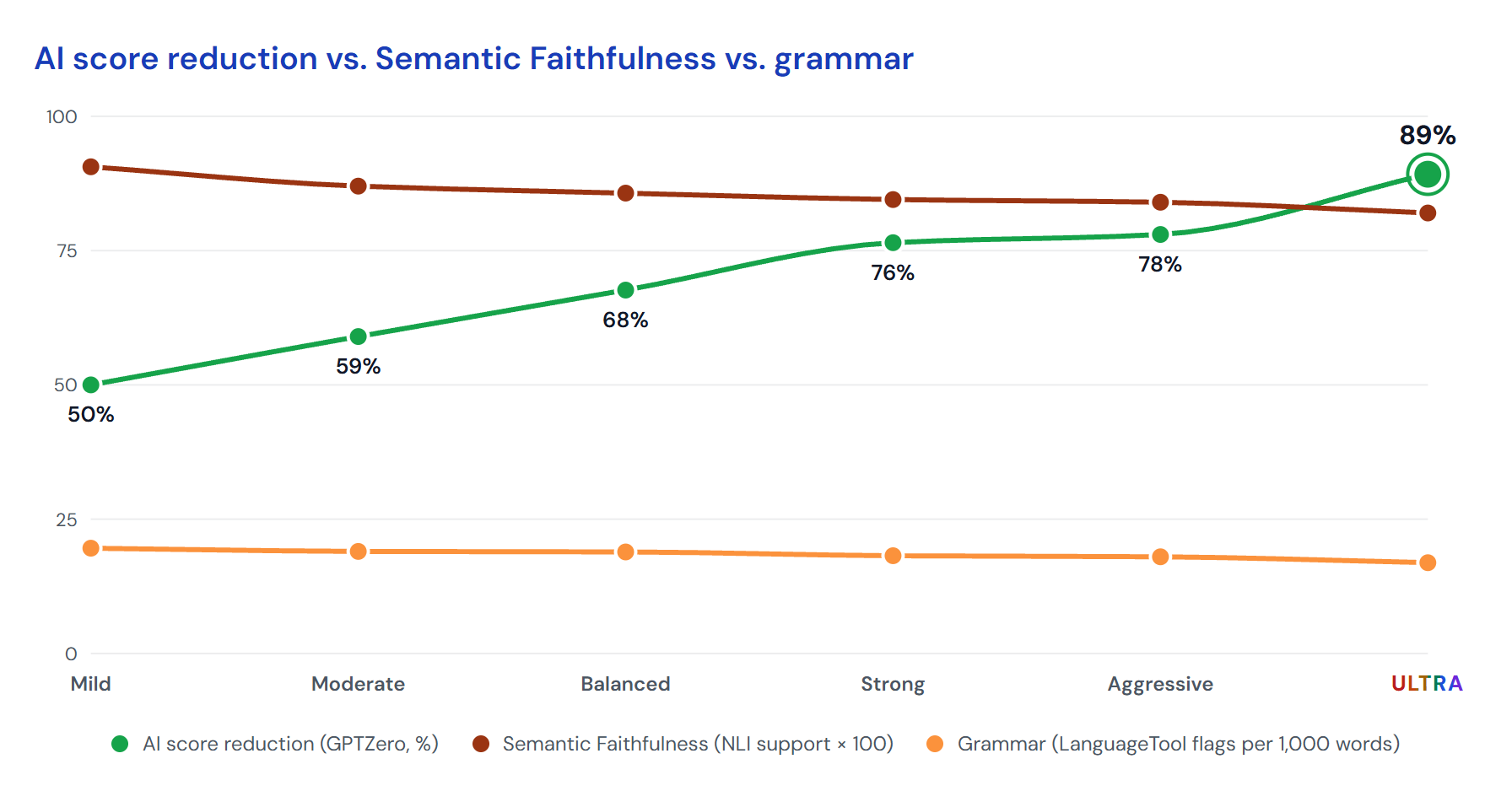
The graph below plots three measures against the six settings: the AI score reduction on GPTZero, semantic faithfulness as NLI support, and grammar as LanguageTool flags per 1,000 words.
ULTRA functionality and cost
ULTRA works on its own fine-tuned model, separate from the five settings below it. It rewrites more of every paragraph than any other setting, and its AI score reduction on GPTZero, 89%, is the highest of the six. The next setting down, Aggressive, reads 78%.
The cost is in the text. Readability and grammar come out slightly lower, and semantic faithfulness is the lowest of the six settings. A sentence can drift from what you meant, so an ULTRA output needs a careful read before anyone else sees it.
The figures in this post are measurements on GPTZero. They carry no promise for a specific document, and detector models change over time. The FAQ on whether TextPulse guarantees a low AI detector score has the details.
Humanize your own paper
Transform your AI-assisted text and make it sound human, without touching important words or citations.
How to revise an ULTRA output
Revise output before submission. A short routine covers most of what can go wrong, and every step uses a view or tool that is already in the dashboard.
- Open the Diff view and read the changes paragraph by paragraph, with your draft beside the output.
- Check each claim against your draft: the numbers, the hedging, and the direction of every finding.
- Open the Cites view and compare the in-text citations with your draft. A citation should stay on the sentence it supports.
- Fix any sentence that drifted by hand, or humanize the passage again at Aggressive and keep the better version.
- Use the Grammar Checker from the Actions menu to clear residual errors, then use the free Readability Checker to see how the text reads overall.
- If your institution or journal asks for it, use Declare AI use to copy a ready-made disclosure statement into your submission.
Which AI humanizer intensity level to use
Start with Balanced. It suits most academic writing, and its output needs the lightest review. If a Balanced humanization still leaves machine cadence behind, move up to Strong or Aggressive and humanize it again. The guide on how to humanize AI text covers the modes, freeze terms and review that go with each round.
| Document | Start at | Why |
|---|---|---|
| Thesis chapter or journal manuscript | Balanced | Readability and grammar come first, and every reader checks the argument |
| Abstract you have rewritten by hand | Mild or Moderate | The text needs a light touch and must stay close to your wording |
| Essay that still reads machine-made at Balanced | Strong or Aggressive | A deeper rewrite changes more of the sentence rhythm |
| Text where the AI score reduction matters most | ULTRA | The highest AI score reduction of the six, with time set aside to revise |
Use ULTRA when the highest AI score reduction matters most and you have time to revise the output. A long document at ULTRA takes longer to review than the same document at Balanced, so plan the time before you choose the setting.
ULTRA in the Doc Humanizer and in other languages
The same six-point slider opens in the Document Humanizer popup, so you can humanize a whole .docx at ULTRA. The body paragraphs are humanized at that setting, and the headings, tables, figures and references are preserved verbatim. The post on how to humanize a Word document covers the upload.
ULTRA works on English text only. The multilingual humanizer covers 60+ languages on its own engine, and its highest setting is Aggressive, so non-English text set to ULTRA uses the Aggressive intensity. The AI Humanizer page covers the engine in full, including the writing modes and the Voice filter.
Frequently Asked Questions
ULTRA, the sixth setting on the slider. It is the maximum rewrite, with the highest AI score reduction of the six at 89% on GPTZero, at the cost of slightly lower readability and grammar.
PhD in natural language processing, with years spent building NLP applications end to end. Moe works on text analysis: lexical and syntactic structure, and what separates machine-generated prose from human prose statistically. He has been experimenting with computational linguistics since the early days of NLTK, spaCy and WordNet, and still writes most of his tooling in Python.